


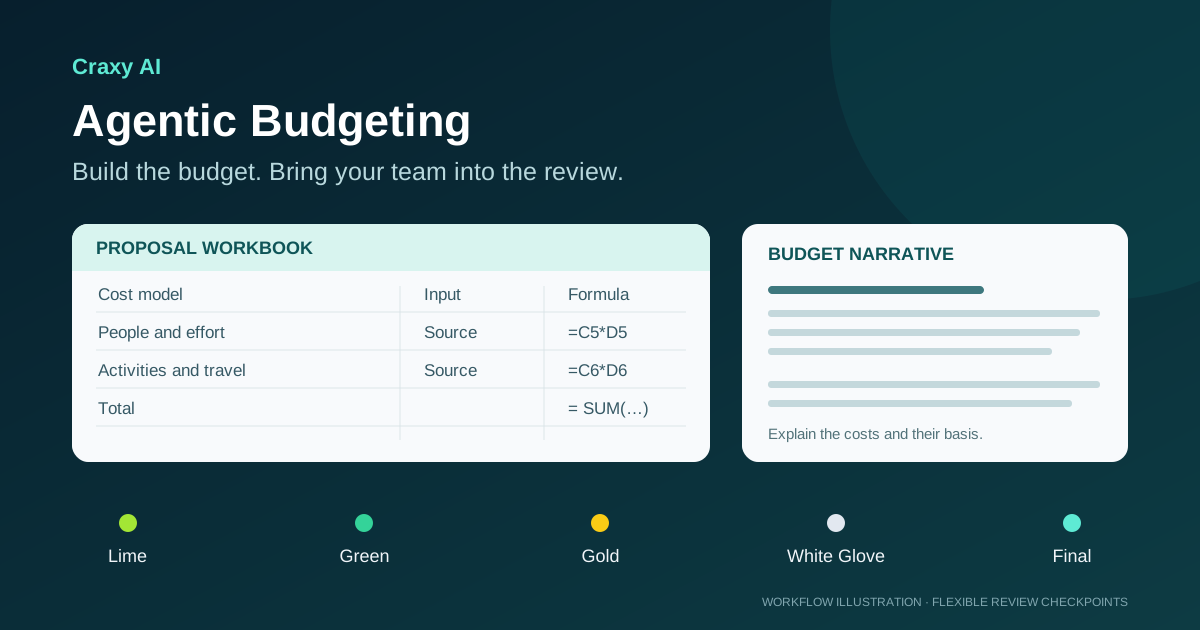
Craxy AI's Agentic Budgeting workspace helps NGOs, grant teams and contractors build editable Excel budgets and Word budget narratives. An AI assistant works alongside your spreadsheet, uses your documents and answers to establish the numbers, and helps check that the budget agrees with the proposed work. Teams can then review drafts, save versions and follow feedback through Lime, Green, Gold, White Glove and Final checkpoints.
Budgeting is available on the Enterprise plan. You can search RFPs for free and write one complete proposal per month on the Free plan; the budgeting workspace is a separate Enterprise capability.
Watch the introduction and detailed walkthrough
Watch the 41-second introduction below to see the budgeting workspace in action.
For the complete workflow, watch the 3:55 detailed walkthrough on YouTube: Build Complex Federal Proposal Budgets with AI Agents. You can also open the introduction on YouTube or browse the Craxy AI channel.
The videos introduce the budgeting workflow. The sections below explain how to build on that workflow with team feedback and saved review versions.
Build the workbook and its explanation together
A proposal budget needs to explain how the project will use its resources. Staffing, activities, travel, partner costs and the budget narrative all need to describe the same plan. That matters for an NGO pursuing USDA funding just as it does for a contractor preparing a cost volume.
Start with the current solicitation or funding notice, the agency's Excel template and supporting files. You can also start a budget from an existing Craxy AI proposal. The assistant fills a working copy of the template, preserving the original, while you follow the work in a live spreadsheet.
Calculated amounts use visible formulas. Numeric inputs carry a source, such as a document, a rate lookup or your answer. For missing information, including salaries, fringe, indirect rates or quantities, the assistant asks for input. Planning estimates can be recorded with their uncertainty, so the team can distinguish an early assumption from a confirmed figure.
The workspace also creates an editable budget narrative or justification alongside the workbook. You can review the explanation and figures together, ask for changes, and download the workbook as Excel and the narrative as Word. Finished budget files can be attached to a proposal's export or email package.
For projects that need financial assumptions, Extra, beside Attach in the chat, provides optional inflation, currency and interest inputs. Record the rates, sources and timing assumptions your team wants to use, and check them against the funding notice's requirements.
For a fuller guide to the underlying budgeting work, read How to Simplify Complex RFP Budgeting with Agentic AI.
Use team reviews as flexible checkpoints
Open Collaborate to add meeting notes, questions and reviewer feedback. You can save a version with a summary of what changed and choose the stage that fits the draft. Saved versions preserve the historical files and context as work continues on the current draft.
Craxy AI supports five stage labels. The examples below suggest how a team might use them; each team controls its review process.
| Checkpoint | Example focus for your team |
|---|---|
| Lime | Discuss the scope, activities and early estimates, even before a technical proposal is ready. |
| Green | Review staffing, quantities, rates and the basis of the cost model. |
| Gold | Reconcile the budget with the technical approach, schedule and partner responsibilities. |
| White Glove | Review the presentation, explanations and remaining feedback before the final package. |
| Final | Confirm alignment with the current technical proposal and attachments, run the checks and save the reviewed version. |
You can repeat, skip or return to a checkpoint as information arrives. Moving stages is a team decision. A stage label does not impose a fixed set of content requirements.
In Team settings, account owners can enable Budgeting access for members and assign reviewers to individual stages. After saving the draft, use Ready for [stage] review to request a review from that stage's assigned reviewers. The team controls when the draft advances.
Turn reviewer feedback into a revised budget
Select the comments you want the assistant to address and ask it to apply them. It reads the current proposal and added or changed attachments, then helps reconcile scope, staffing, schedule and budget figures. Earlier saved versions remain available for comparison and download.
This gives reviewers a practical way to follow a change. If the technical approach adds a field activity, the next budget revision should explain the associated effort and costs. If a partner's role changes, the cost allocation and narrative should reflect the new responsibility. The workspace tracks planning facts and changes so those discussions have context.
Feedback stays open until a user resolves it. The assistant can explain what it addressed and identify conflicting requests; the team decides whether the revision answers the comment.
Check the current draft before using it
Budget checks help identify calculation errors, missing inputs and disagreements between figures. They can compare summary totals with detail, funding amounts with established limits, and workbook figures with narrative amounts. Review any failed or unresolved checks and confirm the required inputs before finishing the draft.
When you use collaboration versions for submission, save a Final after checking the budget and confirming alignment with the current technical proposal and attachments. That Final must still match the current draft and sources. Subsequent changes require another check and an updated Final.
You can also work alone. Collaboration is optional: a checked, ready budget can be used directly without going through the review stages.
Get started
Enterprise users can open Budgeting in the dashboard, attach the solicitation and templates, and begin with the project information they already have. Add team members and stage reviewers when the draft needs their input.
If you are exploring Craxy AI, find RFPs for free and write one complete proposal per month on the Free plan, with no credit card required. To add Agentic Budgeting to your team's workflow, request Enterprise pricing.
Read the Budgeting release note for the product update, or start with the intro video and detailed walkthrough.
Frequently asked questions
What does Agentic Budgeting create?
Craxy AI helps build editable Excel grant budgets and contract cost volumes, plus Word budget narratives. It works from your solicitation, templates, supporting files and answers, with visible formulas and sources for numeric inputs.
Which budgeting review stages does Craxy AI support?
Lime, Green, Gold, White Glove and Final. They are flexible checkpoints: your team can repeat, skip or return to stages, save versions, add feedback and request reviews from assigned reviewers.
Is Agentic Budgeting included in the Free plan?
Budgeting is an Enterprise feature. The Free plan includes RFP search and one complete proposal per month, with no credit card required.
Can I build a budget without using team reviews?
Yes. Collaboration is optional. You can work alone, run the budget checks and use the ready budget directly. When collaboration versions are enabled for submission, the budget must have a saved Final version that matches the current draft and sources.
Open RFPs you can bid on right now
Browse all- Africa - GLOBAL - AI and Informal Employment Dynamics ServicesDue Oct 16
- Debt Collection ServicesKnoxville, Tennessee · Tennessee · Due Oct 16
- Transcription and Stenographic ServicesWashington, DC · District of Columbia · Due Nov 6
- Court Transcription and Stenographic ServicesWashington, DC · District of Columbia · Due Nov 6
- Transcription and Stenographic ServicesWashington, DC · District of Columbia · Due Nov 6
- Guide Printing and Mailing ServiceWashington, DC · District of Columbia · Due Nov 6